Addon and companion
Get set up
Three steps. The first two take two minutes.
Sign in
The addon
Forever Sixty Data adds the item scores the addon uses, updated nightly. CurseForge and Wago install it for you.
The addon saves your character when you log out; the companion sends it to the site. No companion? Paste an export instead (see Try an export below).
An export is loaded; the site is pointed at that character.
Try an export
Paste what the addon saved (type /fs copy in game) to see your character without the companion.
Manual install
Forever Sixty Data carries the Forever Scores and guild standings the addon shows, updated nightly. CurseForge and Wago add it for you; a hand install needs both.
Current data build: 1.60.1.70707
Everything the addon does
What it does in the game
The Forever Sixty line
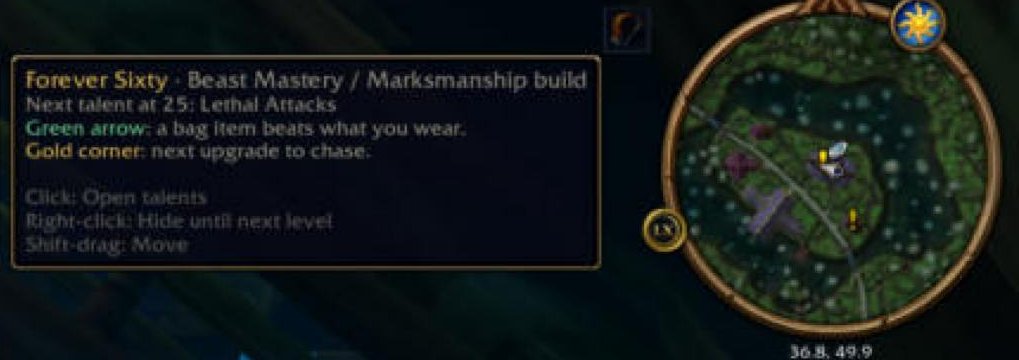
A small icon and line beside the minimap that names your next step: the talent to take, a bag item to equip, loot here for you, or what a raid check found missing.
Talent marks
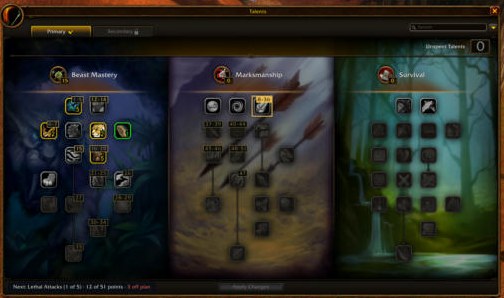
In the talent window, a gold ring marks the next talent, every talent your build takes carries its order number, and a strip along the bottom counts your progress and any points spent off plan.
Item tooltip
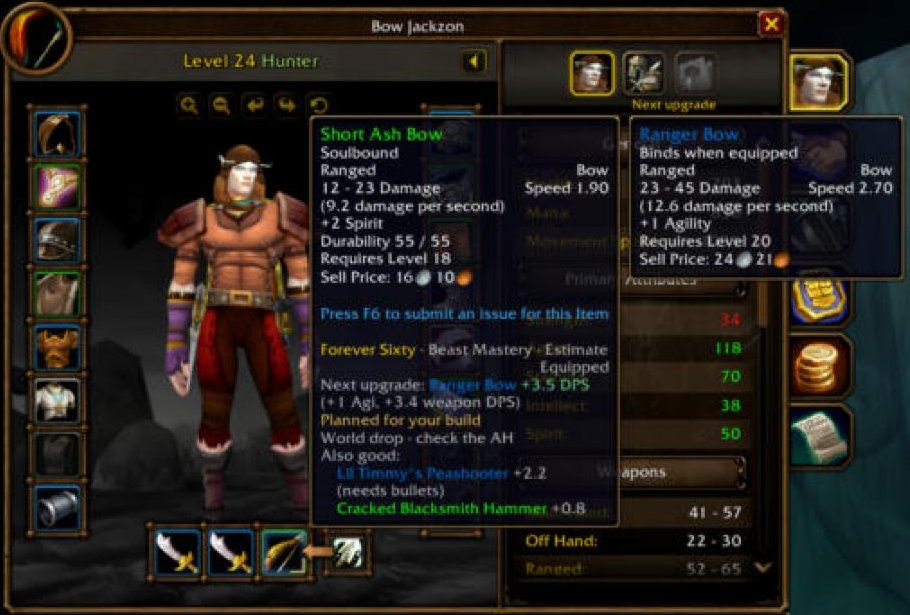
Every item tooltip gains a Forever Sixty section that says whether the item is an upgrade and by how much, the next upgrade for that slot and where it comes from, and two alternatives.
Paper doll, bags, quest rewards, rolls
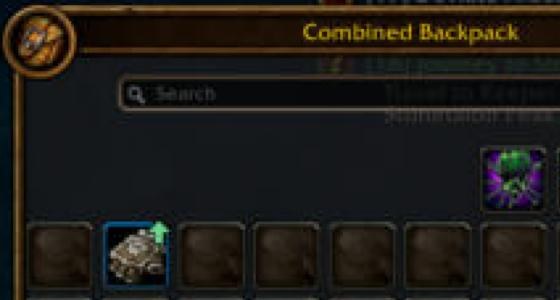
A green arrow marks a paper-doll slot and the bag item that beats it, a gold corner marks a slot with an upgrade to chase, the quest reward your spec prefers is marked, and the roll frame shows the tooltip’s verdict beside the item.
The "Forever Sixty" character-panel tab
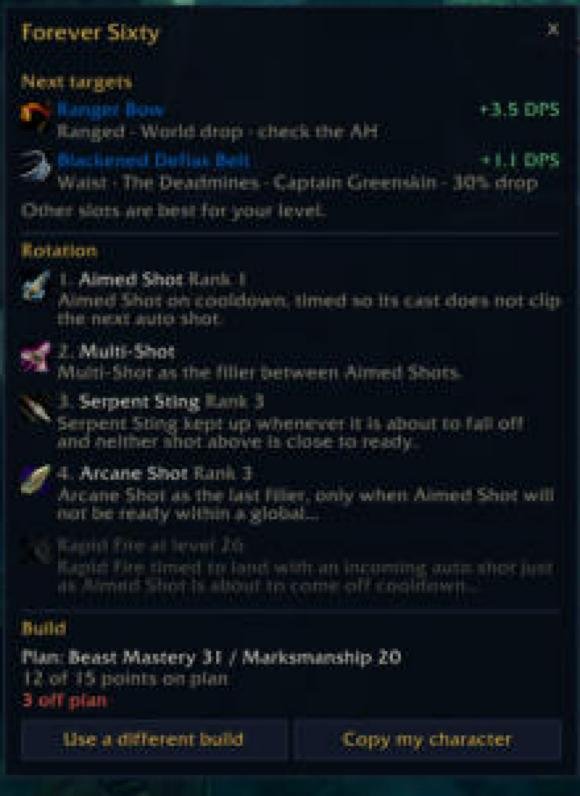
A tab on the character panel with your next gear targets, your rotation for your level and your build; at 60 it adds your sim and your last raid.
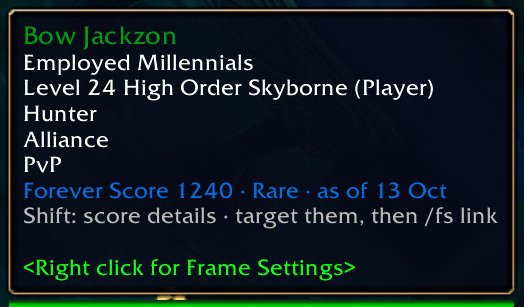
The player tooltip and the score
Every player tooltip carries that player’s Forever Score, and in LFG, Trade, guild chat and whispers a sender with a score gets an FS badge before their message.
![A guild chat line, “[Guild] [Bow Jackzon]: FS 1240 · (addon test 3)”, with “FS 1240” in blue and a muted dot before the message.](/addon/chat-badge-guild.jpg)
Guild tab
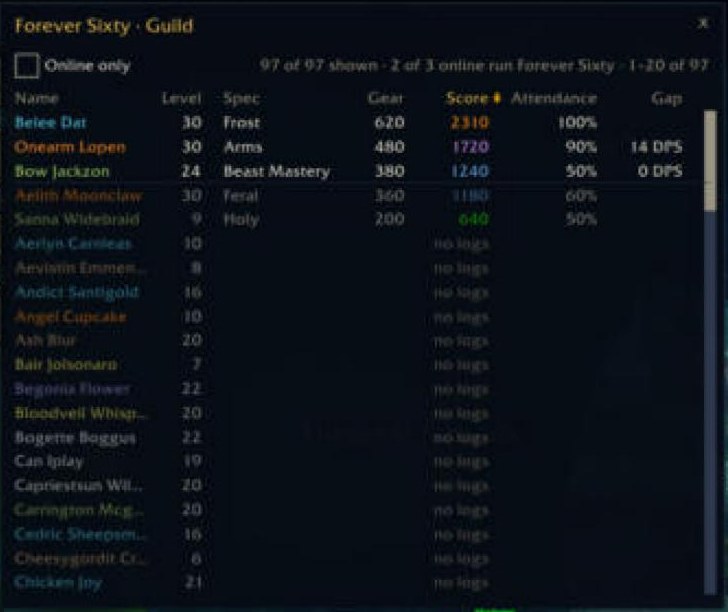
A tab on the guild frame lists the roster’s level, spec, gear, Forever Score, attendance and gear gap, sortable, live for members who run the addon.
Group panel
A tab on the raid frame shows each member’s spec, level, gear gap and score before the first pull, and on a ready check lists who lacks flask, food, weapon imbue or a class buff.

Guild and raid messaging
Addons in your guild, raid or party share level, spec, gear gap and build name, pass builds to each other, and tell the master looter what a drop is worth to each member.
Build dialog
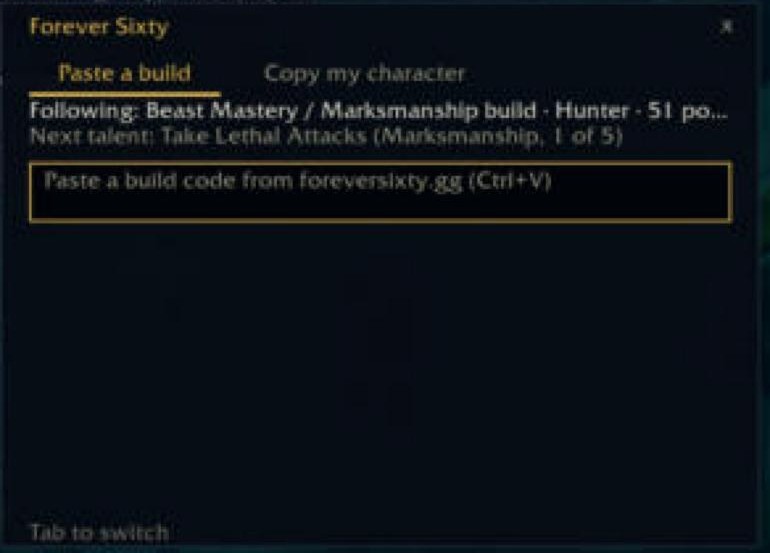
The addon’s one window of its own, where you paste a build from this site to follow it or copy your character to paste here.
Settings
Eight switches on the client’s Settings page, each with one line saying what it does, then Reset positions and the command list.
Commands
/fs: paste or copy a build/fs copy: copy my character for the site/fs build: switch between saved builds/fs chip: show or hide the Forever Sixty line/fs inspect: gear and talents of your target/fs link: copy a player's site page/fs group: your group's specs, gear and buffs/fs ready: check flasks, food and buffs now/fs loot: what an item is worth to you/fs floor N: tag members scored under N/fs options: open the settings page/fs diag: check what is wrong/fs help: every command
The companion handshake
When you log out, the addon saves your character export (level, spec, talents, equipped gear, and bags when the bag switch is on), any sim request and the guild tab’s live roster. The roster is saved only while “Share my build with my guild” is on, and members who opted out appear as “seen HH:MM” only; the companion uploads all of it and brings back what the site has for you, builds and sim results included. The build dialog’s Copy my character tab then says “Site has your save from” and how long ago once the site has your latest copy, and “Not sent to the site yet · log out to send” until then.
The addon never talks to the network. Everything it knows is generated here and carried in the strings you copy.
How the addon works
Out of the game
In game, type /fs copy, press Ctrl+C, then paste it into the planner’s Import from addon box.
Into the game
Save a build here, press Copy for the game, then type /fs in game and paste it.
The in-game window
The addon is in beta testing in game. Every surface it draws is listed above under What it does in the game, with a capture from the client where we have one.
The companion
Sends your character automatically and logs live. Without it, paste an export after each change.
Windows only; Mac is not supported yet.
The companion logs live from your desktop. Turn on Options > Network > Advanced Combat Logging once, then restart the game. Type /combatlog in game, and every fight appears under Your reports within seconds of the pull ending.
Sign in with Battle.net inside the companion; it connects itself.
